

What You’ll Learn: How to use Claude Skills to evaluate the relevance of any new AI product or feature. Based on your personal and professional interests, it’ll output a short decision with an explanation on why you should either:
- Use – Strong recommendation to spend the time to learn this and integrate into your workflow.
- Try – Try it if you have the time, but don’t expect a game-changer.
- Pass – Not worth your time.
This is for you if:
- You experience AI FOMO and feel way behind on all the tools out there
- You want to quickly learn Claude Skills
- You want to build agents, but haven’t built one before (Claude Skills are low-level Agents.)
Read time (core content): ~6 minutes
Read time (bonus tips): ~3 minutes
TL;DR
- Claude Skills let you package instructions, data, and even code as a reusable workflow Claude can automatically call in any Claude surface — web, desktop, Claude Code, and API.
- Claude recognizes when you want to call a skill when you use pre-specified trigger words.
- You can build a skill by asking Claude to “make a skill” and then answering Claude’s questions. (Make sure you’re on a Pro or Team account, and turn on the skill-builder skill.)
- Claude Skills are like Custom GPTs or Gemini Gems, except they are available in any chat.
Prereqs
- Claude with a paid plan (Pro or Team is enough).
- An AI tool you’re wondering whether you should learn. (OpenAI Atlas is a good example at the time of publishing.)
What We’re Building
AI FOMO is real, and just about everyone in tech feels behind. How do you know where to spend your time to deeply learn skills when another new product is one day away from being released?
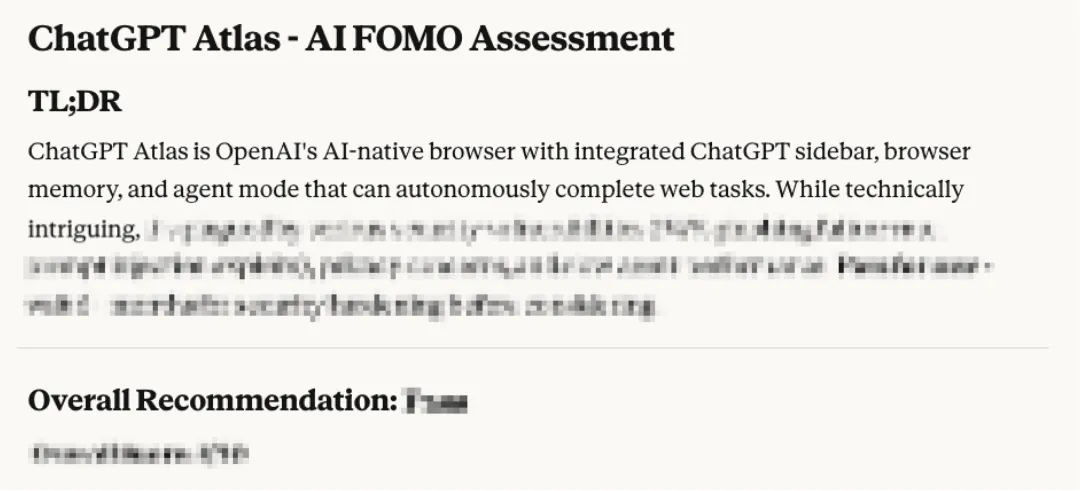
The AI FOMO Buster
We’ll use Claude and Claude’s new Agent Skills feature to build what I call an AI FOMO Buster. When another AI feature or product gets released, feed it to the AI FOMO Buster, and it’ll tell you whether you need to pay attention or pass on it, based on what Claude knows about you.
In this post, you’ll learn how to build this skill from scratch, as well as best practices for the skills you build in the future.

Step 1. Turn on Skills
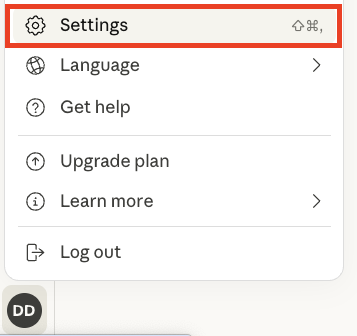
You can make skills by writing your own files, but Claude makes it easier for you. Click on your Profile Icon in the bottom left corner of the page, and click on Settings.
Then click on the Capabilities section and scroll down until you see a box titled Skills.
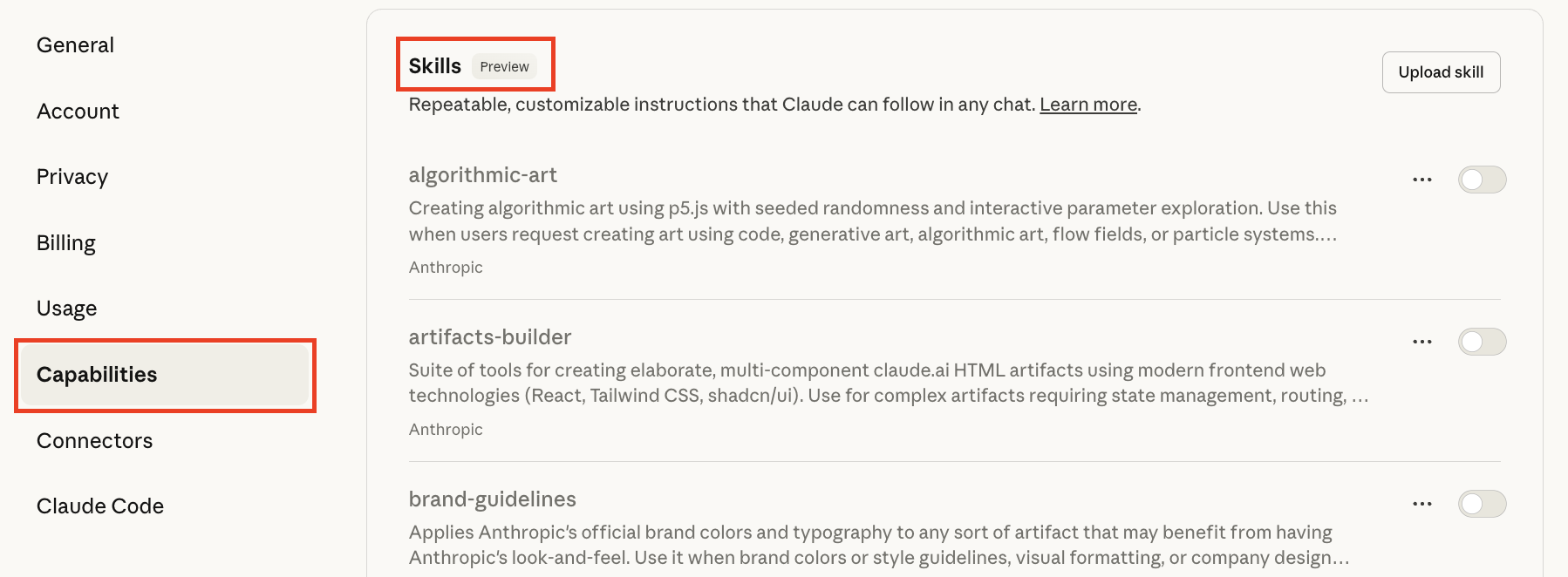
Claude has several built-in skills that you can explore. Scroll down until you see the “skill-creator” skill and turn it on.

Step 2. Establish a Baseline
Before you build a skill, confirm that it’s worth your time by testing Claude’s baseline behavior. If Claude’s response is good enough for your needs, you’re done!
Try the following prompt:
Evaluate OpenAI's Atlas browser (<https://openai.com/index/introducing-chatgpt-atlas/>) and give me a recommendation out of the following based on your knowledge of me, with a brief explanation of why you made this recommendation:
* Use - Strong recommendation to spend the time to learn this and integrate into your workflow.
* Try - Try it if you have the time, but don’t expect a game-changer.
* Pass - Not worth your time.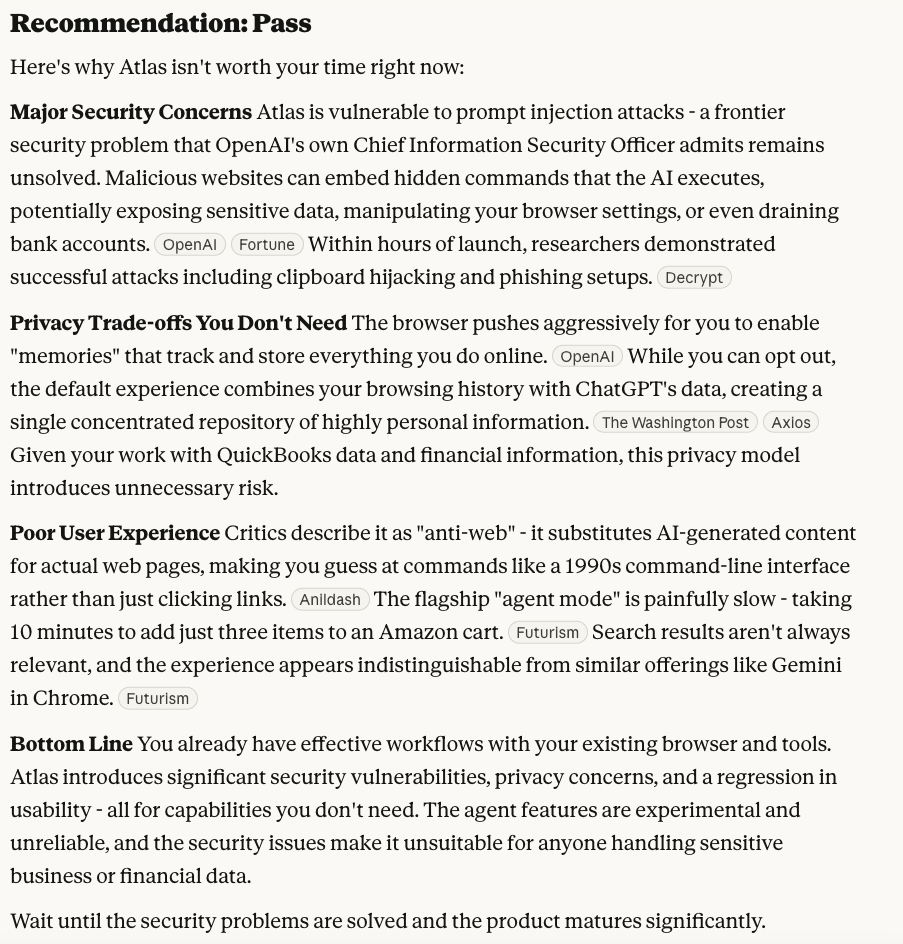
I received the response above. Yours will be different, so I’ll walk you through my decision-making process on why, even with this comprehensive response, I’ll still build a skill:
- I’m lazy. I’ll repeat this prompt often, and I don’t want to copy and paste it every time there’s a new product.
- This only evaluated my personal context, not my professional one. Claude suggested I pass on using Atlas for personal productivity, but is there some element of my job where Atlas might still be relevant?
Step 3. Make the Skill
Start a new Claude chat to free up context and then use the following prompt to start the skill-building workflow:
make a skill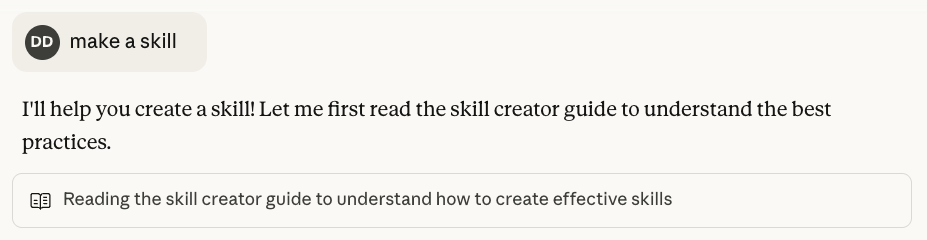
Claude won’t always ask you the same questions to create the skill, but they’re usually some variant of:
- What would you like your skill to do?
- Can you give me some examples of how you’d use it?
To save you the thinking time, I’ve prepared an answer you can copy and paste below.
I want to build a skill for AI FOMO busting.

Problem: There are too many AI products and features coming out right now for me to give my full attention to, so I want a way to prioritize what I should care about most.

Trigger Words: I'll use the words "ai fomo" + a feature/product name + a link to the press release so you know what I'm referring to.

Workflow: When this skill is invoked, go through the following steps:

Research: Search for additional context, including press response and public response (commentary on Reddit, X, HackerNews, etc.).

Assess Relevance: Use my past conversation history to understand my interests and workflow to assess relevance. If you don't have enough insights from our conversation, ask me up to 3 questions for clarity.

Score: Output a numerical score from 0 - 10 in addition to a Recommendation (Use / Try / Pass). Explain the recommendation from two contexts: my personal productivity and my professional productivity. Supply a 0 - 10 score for both Personal and Professional as well.

What else should I clarify?
Notice the final line: “What else should I clarify?” There will almost always be some ambiguity in your instructions, and this final question gives Claude a chance to resolve that ahead of time.
In my attempt, Claude asked follow-ups about research depth, source prioritization, scoring criteria, and output format.
Choose only the questions you want to answer. This is a trade-off between being too vague—so Claude doesn’t consider enough information—and too precise—so you restrict its creativity.

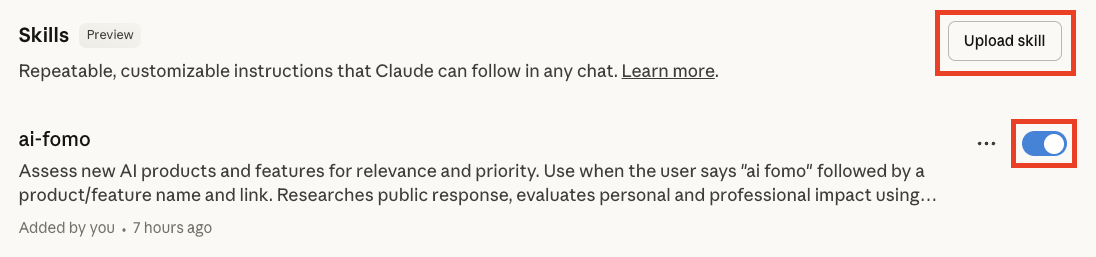
When you finish answering questions, Claude prepares the skill for you. Download it, and then go back to the Skills section in your Settings (under Capabilities). Click the Upload skill button, and upload the skill file you just downloaded. Ensure your skill is turned on (see below), and then get ready to try it!
Step 4. Test Your Skill
Time to test what Claude built for us! Create a New Chat and invoke the skill using our instructions above:
ai fomo - OpenAI Atlas - https://openai.com/index/introducing-chatgpt-atlas/If you did it correctly, you’ll see Claude load your skill’s instructions into its context and execute them, leaving you with a result like this.

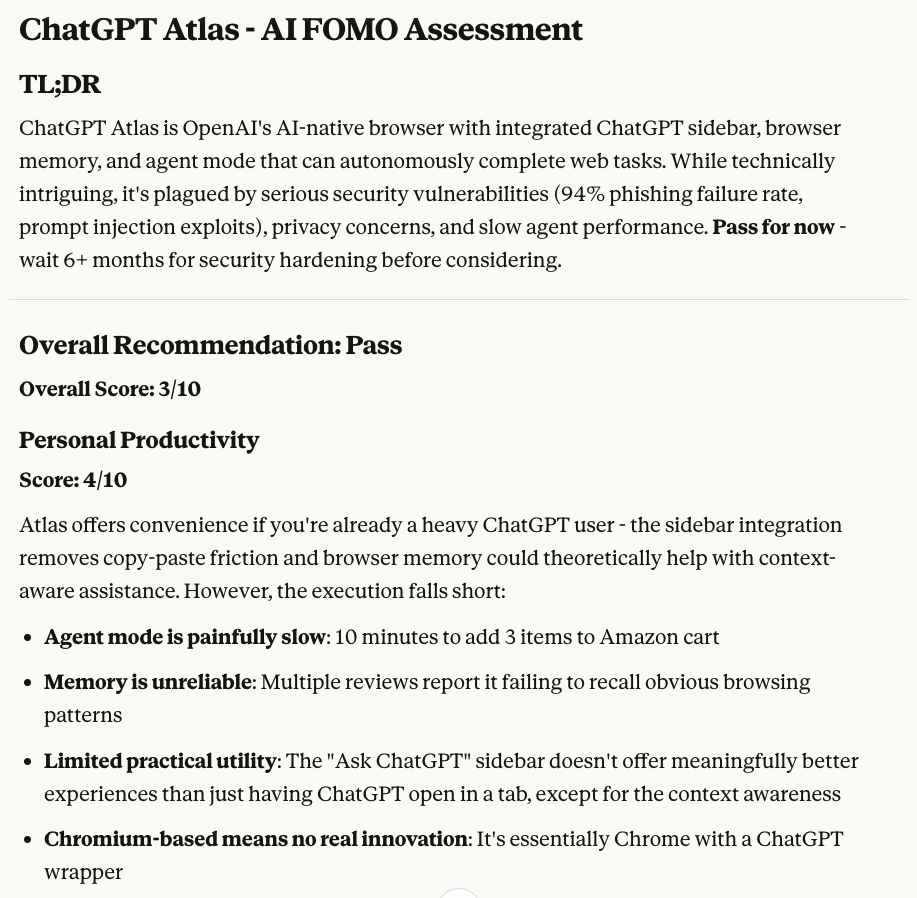
Now that’s a good start, but what if you wanted to make a few changes?
Step 5. Update and Refine
Find something about Claude’s output that you’d like to change. It could be the type of content, the format, or even specifics about the scoring algorithm.
In my case, I actually liked what Claude wrote, and I wanted to preserve it for future runs of this skill.
You can modify the skill from the same chat. Just tell Claude what you want to change.
I really like this format. Update the SKILL.md file to use this exact output structure (with all the same headers, subheaders, bold formatting, and section organization) as the template for future AI FOMO assessments.TIP: Use “Update the skill” or “Update the SKILL.md file” as part of your prompt to make sure it understands that you want to update the skill.
Make sure after you submit this prompt that you download the updated skill. Sometimes Claude will not offer it to you, and you’ll need to ask “let me download the skill” explicitly.
Re-upload the skill, and start a new chat to use the updated version.
Bonus Step. Make It Concise
Congratulations! You know how to make a skill. The rest of this article will summarize best practices to enhance your skills, starting with making it concise.
Your skill shares the context window with everything else that Claude uses to answer a prompt. There is a limited amount of space in that context window, so if your SKILL.md could be shorter and achieve the same goal, do so.
Why bother? One of Claude’s chief issues is that when you hit the maximum length for a context window, you can’t continue. Don’t make this issue worse than it already is:

To fix this, go back to where you updated the skill. You should see a section that looks like this, where Claude edits the SKILL.md file:
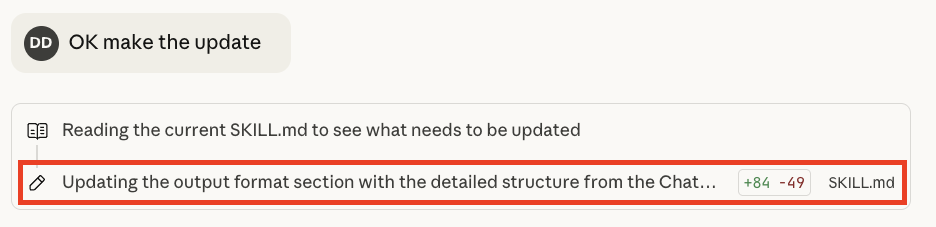
Click the area inside the red box to open the skill file in the canvas and look for redundancies. For example, I found a hallucinated requirement to add an assessment log:
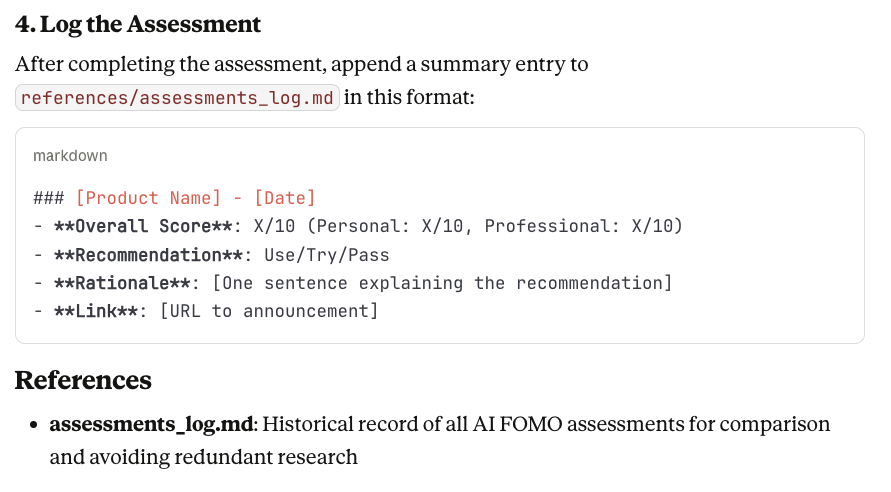
Claude recommends you keep your SKILL.md file under 500 lines for optimal performance. If you need more content, split it into separate files using a recommended progressive disclosure pattern.
Unzip your downloaded skill file and make your changes directly in your SKILL.md file. Once completed, zip up your file again (.zip or .skill extension is fine) and re-upload it to Claude.
Other Pitfalls
Skill isn’t being invoked
This is one of the most common issues I ran into. You try to use a skill using your set trigger words, but the skill isn’t used. Remember, Claude will always load a skill into memory before executing it. If you don’t see this, your skill is gathering dust.
Here are some steps you can try:
- Verify the skill is turned on in your Settings.
- Check that the skill’s description field clearly explains when it should be used. Remove any ambiguity possible.
- As a last resort, use the skill name in your prompt (e.g., “ai-fomo” or “skill-creator”).
Context Length Exceeded
Read the Bonus Step first. Continue if you still have problems.
Consider giving Claude more freedom for some tasks in the skill. Here’s how you can decide when this makes sense:
- Given any task, if multiple approaches to perform the task are valid and each approach is based more on heuristics than a set of steps, then your instructions don’t need to be as precise.
- For those tasks, prefer more general instructions. Ideally, you’ll trim down the context necessary to invoke the skill.
Model Mismatch
Your skill will perform differently on different models. If you deploy your skill to others, either:
- Make sure your skill works with multiple models.
- Be explicit about which models are supported.
NOTE: Claude can’t detect which model it’s using at runtime.
Inconsistent results / Workflows are executed in the wrong order
For very complex skills that involve multi-step and branching workflows, you have two options to clear them up.
First, implement a checklist in the SKILL.md file and ask Claude to track its progress. Below is an example from Claude’s documentation:
Copy this checklist and check off items as you complete them:

Research Progress:
[ ] Step 1: Read all source documents
[ ] Step 2: Identify key themes
[ ] Step 3: Cross-reference claims
[ ] Step 4: Create structured summary
[ ] Step 5: Verify citations

**Step 1: Read all source documents**
Review each document in the `sources/` directory. Note the main arguments and supporting evidence.
...
Second, use a validation step to ensure the output matches expectations:
Research Progress:
[ ] Step 1: Read all source documents
[ ] Step 2: Identify key themes
[ ] Step 3: Cross-reference claims
[ ] Step 4: Create structured summary
[ ] Step 5: Only proceed when all requirements are met
[ ] Step 6: Verify citations
For more complex skills, you can write Python code to validate the result.
Building a skill when you don’t need it
As a final reminder, don’t forget Step 2! Claude’s models get better all the time. And in a world where the time you can build skills or agents is becoming more and more precious, you can’t afford to duplicate work.